The Leftovers Test: Five Free Eraser Apps vs. My Messy Kitchen Counter
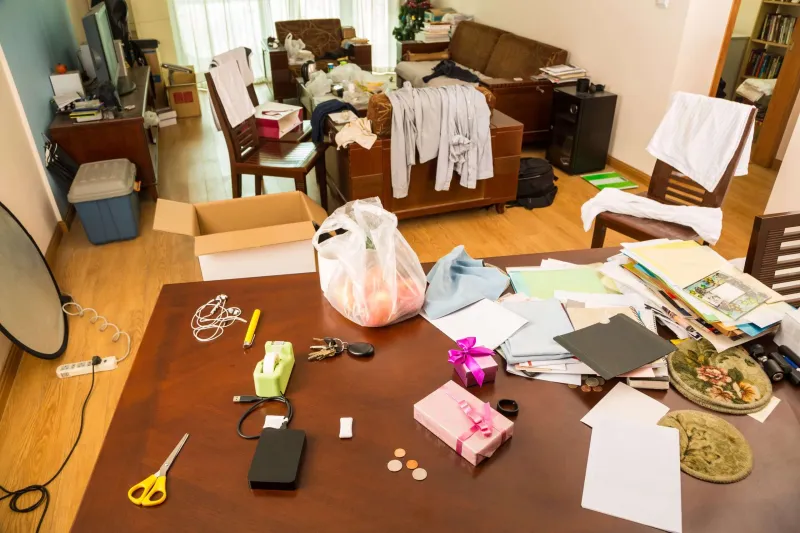
Photo: messy kitchen counter with phone chargers receipts and fridge magnets, natural window light, smartphone photo editing, via brennanclean.com
My kitchen counter is not a photo studio. It is a charging station, a receipt graveyard, and a fridge-magnet gallery all fighting for the same square footage. That makes it perfect for testing the AI eraser tools that promise to clean up a photo with a swipe. In 2026, every phone app seems to have a "remove" button. The real question is not whether it can delete a receipt. It is whether the repair looks believable once the receipt is gone.
For this test, I shot the same scene twice: once on a Pixel 8a and once on an iPhone 15, both propped on a small tripod near the window. The frame included a tangle of USB-C cables, a Target receipt, a grocery list, three fridge magnets, a stainless kettle, and a cutting board that never made it back to the cabinet. I ran five free eraser tools against the same set of objects. I was not grading speed. I was grading leftovers.
The test scene: a counter with a criminal record
The scene had everything an eraser app hates. Cables crossed a tile grout line. The receipt had curled corners and a soft shadow. The fridge magnets sat on brushed steel, which is basically a mirror with opinions. The kettle reflected the window and a blue mug. If an app can handle those transitions, it can probably handle a stray tourist at a landmark or a trash can at the edge of a beach shot.
I used the same starting file each time, a 12MP JPEG straight from the phone. No RAW, no editing presets, no Lightroom cleanup before the erase. The goal was to see what a hobbyist photographer would get from a free download and five minutes of thumb work.
What "free" actually means now
The free tiers are where the fine print lives. Google Photos Magic Eraser is free on Pixel phones, which is why I used the Pixel for that one. The other four apps ran on the iPhone: Picsart, Canva, Fotor, and YouCam Perfect. All five let me remove something without paying upfront. Not all of them let me export the result at full size without a watermark, an ad, or a subscription prompt.
That matters. An eraser that produces a clean repair but drops the export to 1080px is not much use for a print or a cropped social post. I noted the export size, watermark, and whether the app stripped metadata. Two of the five stripped EXIF data. One added a small watermark in the corner unless I watched a short ad. The ad was faster than the subscription screen, but neither felt like "free" in the way the app store description implies.
Edge repair: the grout line doesn't lie
The cable crossing the tile grout was the first honest test. A good repair continues the grout line without wobbling. A bad repair smears it into gray soup.
Google Photos handled the cable well on simple tile, but it softened the grout line about an inch past the removal. Picsart was more aggressive: it removed the cable cleanly and then rebuilt the tile with a faint pattern that did not match the neighboring squares. Canva had the cleanest edge on the grout, though it left a slight blur that became visible at 100 percent. Fotor produced the most natural tile texture, but it also ate a tiny piece of the cutting board edge. YouCam Perfect removed the cable and left a pale halo where the shadow had been.
The receipt was harder. Curled paper means soft edges, and soft edges are where these tools guess. Canva and Fotor kept the receipt's shadow footprint a little too long, so the counter looked like it had a ghost receipt. Picsart removed the shadow completely and invented a faint scratch on the counter. Google Photos split the difference: clean removal, slightly plastic texture.
Shadows and reflections: where erasers get caught
The fridge magnets were the reality check. Brushed steel is not a flat surface. It has direction, highlights, and a weak reflection of the room. Every app could remove a magnet. Only two made the steel look like steel afterward.
Canva did the best job on the brushed texture. It kept the vertical grain and did not turn the area into a smooth gray patch. Google Photos was close, but it left a small rectangular sheen that looked like a sticker had been peeled off. Picsart removed the magnet and part of the steel's reflection, which made the fridge look cleaner than it was but also less real. Fotor struggled with the magnet shadow, leaving a dark smudge that I had to clone out by hand. YouCam Perfect produced the strangest result: it removed the magnet and replaced it with a faint circular pattern that looked like a second, smaller magnet had been buffed into the door.
The kettle reflection was the hardest. None of the apps fully understood that the reflection was part of the object. Picsart and Canva handled the highlight best. Fotor left a warped window reflection. Google Photos removed the blue mug's reflection but also flattened the kettle's curve. YouCam Perfect invented a thin vertical line in the steel that was not there before.
Export quality: the fine print after the magic
This is where free gets complicated. Google Photos exported the full 12MP file on the Pixel with no watermark. Picsart exported at full size but added a small watermark unless I watched an ad. Canva exported at a reduced size on the free tier, which is fine for a phone screen and not fine for a crop. Fotor exported full size with a watermark in the corner. YouCam Perfect exported full size but stripped the metadata and added a short splash screen before saving.
If you are posting to Instagram or sending a photo to family, most of that is survivable. If you are building a small print or entering a camera-club contest, check the export before you spend ten minutes erasing. A clean repair at 1080px is still a 1080px file.
The hallucination scoreboard
AI erasers do not just delete. They fill. That filling is where the weird stuff happens. Picsart invented a tile scratch. Canva invented a faint counter edge near the cutting board. Fotor turned a receipt corner into a small white shape that looked like a piece of garlic. YouCam Perfect added a circular mark on the fridge. Google Photos was the most conservative, which is usually what you want. It left more original texture and invented less.
The lesson: the best eraser is not the one that removes the most. It is the one that knows when to stop. For hobbyist photographers, a slightly imperfect repair that keeps the scene believable beats a perfect-looking patch that belongs in a different kitchen.
What I'd actually use
If you shoot on a Pixel, start with Google Photos. It is the least dramatic tool here, and that is a compliment. It handles small distractions, keeps the export clean, and rarely invents a new object. On iPhone, Canva had the best edge control for tile and brushed steel, but the free export size is a real limitation. Picsart is the most capable when an object is stubborn, as long as you zoom in and check for invented texture before you save. Fotor and YouCam Perfect are fine for quick social cleanup, but I would not trust either with a reflection or a fine pattern.
My practical advice for 2026: erase less, crop more, and always zoom to 100 percent before you post. The kitchen counter test taught me that the AI eraser is not a cleanup crew. It is a guesser with a very confident thumb. Sometimes the best edit is to move the charger before you take the picture.