Laptop-Free and Wi-Fi-Weak: Ranking Five Phone-Only Backup Workflows for a 64GB Card
The rules were simple. One 64GB SD card, about 58GB of RAW and JPEG files from a weekend shoot, one phone, one hotel room, and no laptop. The hotel Wi-Fi was the kind that looks fine on a speed test and then stalls the moment you try to upload anything real: roughly 8 Mbps down and 2 Mbps up, with a habit of dropping every 20 minutes.
This is not a theoretical workflow guide. I ran five backup routes on the same card, in the same room, on the same night. Here is how they ranked for a traveling photographer who wants to leave the laptop at home.
The Contenders
- SD card reader to phone, then cloud upload — copy files to the phone, then push to a cloud service.
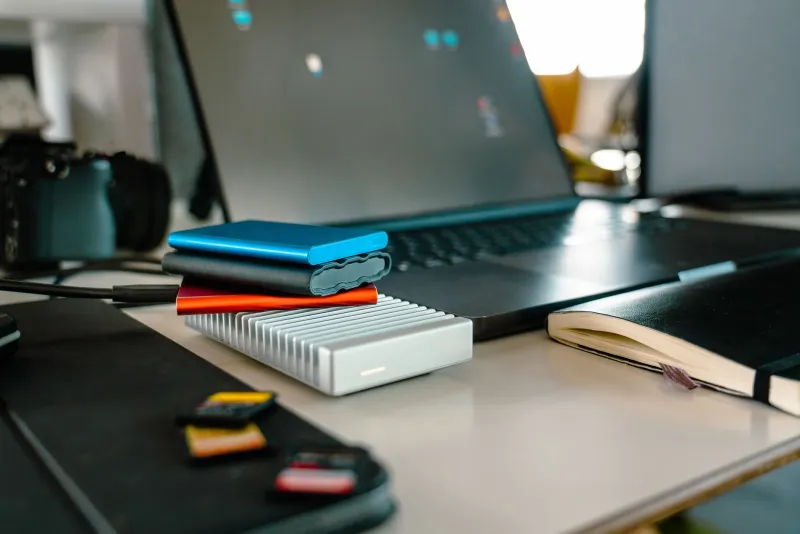
- SD card reader to portable SSD — offload to a small USB-C SSD, skip the cloud until later.
- Direct camera-to-cloud — use the camera's built-in Wi-Fi or companion app to upload straight to a cloud service.
- Phone-first backup app with background upload — a dedicated app that watches the card reader and uploads automatically.
- Portable SSD with built-in card reader and Wi-Fi — a self-contained backup drive that creates its own network.
I timed each one, noted failures, and counted the cost of the gear involved. The card stayed the same. The hotel connection stayed bad.
5th Place: Direct Camera-to-Cloud
This sounds like the dream. No phone, no reader, no cable. The camera connects to the hotel Wi-Fi and uploads files on its own.
In practice, it was the slowest and most fragile option. The camera's Wi-Fi radio is not built for weak hotel networks. It dropped twice during the first 15 minutes and did not resume automatically. After 40 minutes, I had uploaded about 3GB. At that rate, 58GB would take all night and most of the next morning. The setup was fiddly, the app was not clear about what had actually transferred, and I did not trust it to finish while I slept.
Cost: free if your camera supports it. Reliability: poor on weak Wi-Fi. Verdict: fine for a handful of hero shots, not a full card.
4th Place: Phone-First Backup App With Background Upload
The idea is good: plug in the card reader, let the app do the work, and go to dinner. The reality is that background upload on a weak connection is a gamble. The app started strong, then slowed to a crawl. It also kept the phone awake and warm, which is not ideal when you are trying to preserve battery for tomorrow.
It did resume after a dropped connection, which is more than the camera did. But the progress bar was optimistic and the estimated time kept climbing. After an hour, I had about 9GB uploaded. That is better than direct camera-to-cloud, but still not a full-card solution on this connection.
Cost: free to $5 per month depending on the app. Reliability: mixed. Verdict: good for small batches, not for 58GB on hotel Wi-Fi.
3rd Place: SD Reader to Phone, Then Cloud Upload
This is the workflow most people try first. You plug the card reader into your phone, import the files, and then upload them to the cloud. The import step was fast — about 12 minutes for the full card. The upload step was the problem.
The phone handled the card reader without drama, and the files were visible in the photo app. But uploading 58GB to the cloud over a 2 Mbps uplink is a math problem, not a tech problem. It would take hours even if the connection held. It did not hold. I got about 14GB up before I stopped for the night.
Cost: $20–$35 for a good USB-C card reader, plus cloud storage. Reliability: good for the copy, weak for the upload. Verdict: solid if you have fast Wi-Fi or only need to back up selects.
2nd Place: SD Reader to Portable SSD
This was the quiet winner for reliability. I plugged the card reader into the phone, copied the files to a small USB-C SSD, and skipped the cloud entirely. The copy took 18 minutes. No dropouts, no drama, no dependency on hotel Wi-Fi.
The catch is redundancy. Now the files live on the card and the SSD. If the SSD fails or gets lost, you are back to one copy. But for a traveling photographer who just needs to clear the card and keep moving, this is the most predictable option. You can upload later from a better connection.
Cost: $60–$100 for a 1TB portable SSD, plus a reader. Reliability: excellent. Verdict: the best no-laptop workflow when the internet is bad.
1st Place: Portable SSD With Built-In Reader and Wi-Fi
This is the most expensive option, and it is also the one I would pack for a serious trip. The drive creates its own Wi-Fi network, so you can connect your phone and manage backups without touching the hotel connection. I copied the full 64GB card in about 22 minutes. The phone stayed out of the transfer, which meant fewer heat and battery issues.
It is not perfect. The app is clunky, the drive needs charging, and the price is real. But it solved the actual problem: it did not care that the hotel Wi-Fi was bad. It just copied the card.
Cost: $150–$250. Reliability: high. Verdict: overkill for a weekend, excellent for a working trip.
The Recommendation
If you are leaving the laptop at home and you know the Wi-Fi will be mediocre, do not rely on the cloud as your primary backup. Bring a card reader and a portable SSD. Copy the card, verify a few files, and upload selects later when you find a better connection. If you want one device that does the whole job without a phone, the Wi-Fi SSD is worth the money.
The hotel Wi-Fi is not your friend. Plan like it.